Tab Management for Research Papers: Advanced Strategies
The Complexity of Multi-Tab Research
Organizing browser tabs is simple when you have three tabs. Managing them when you're conducting actual research—comparing papers side-by-side, jumping between databases, working across multiple research questions simultaneously—is a different challenge.
A typical research day might include:
-
Two tabs for your writing-in-progress (one in Google Docs, one in Word)
-
Four tabs comparing different papers on methodology
-
Three tabs with supplementary tables and figures you're referencing
-
Five tabs with background research on your research question
-
Two tabs with datasets or tools for analysis
-
One tab with your reference manager
-
Three tabs related to a different research project
That's 20 tabs before you've even sat down to concentrated work. By midday, you might have 50+.
The challenge isn't just volume—it's context switching. A successful research tab strategy keeps your cognitive load low while maintaining quick access to all necessary information.
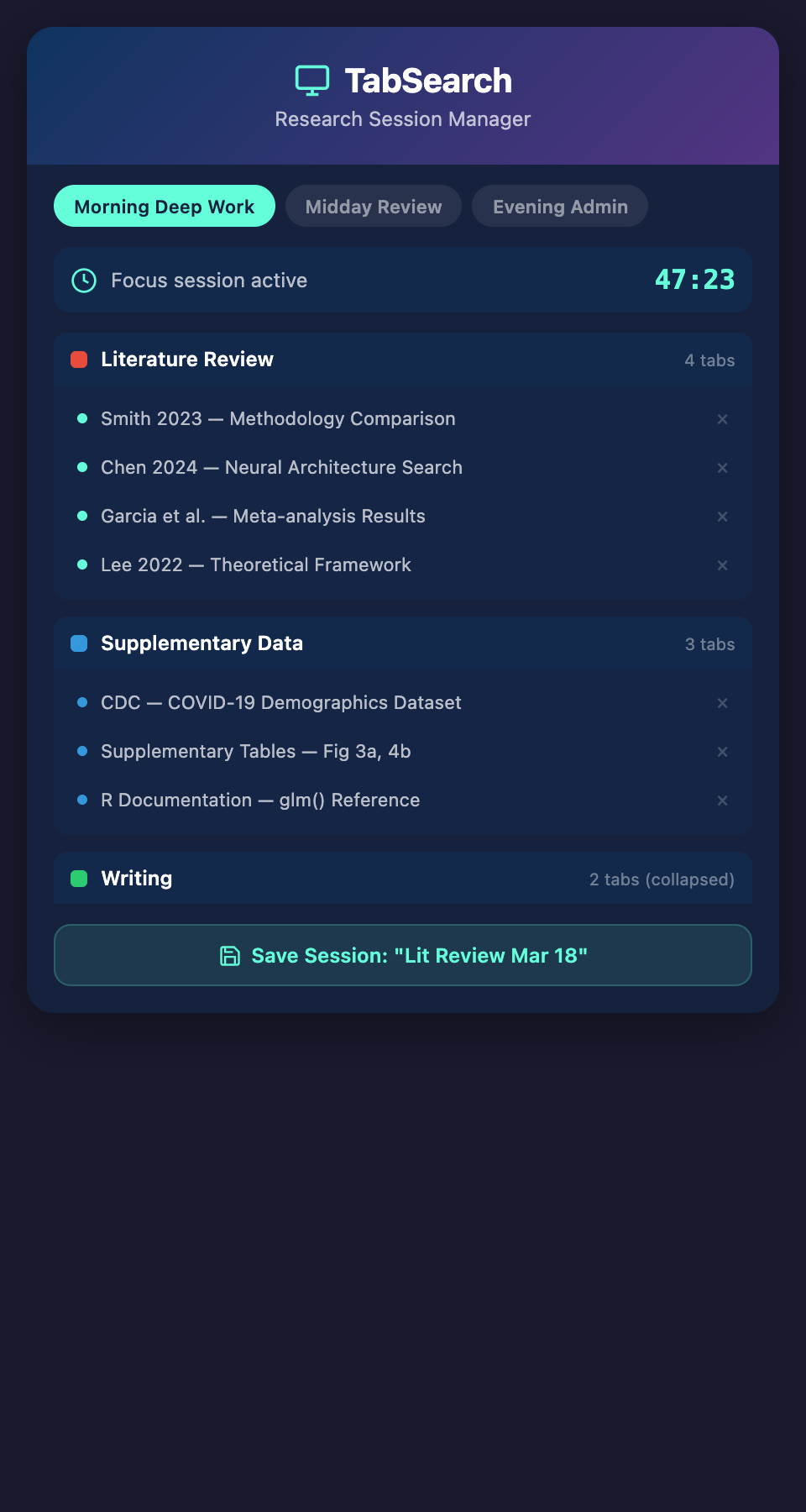
Advanced Tab Grouping Architecture
We discussed basic three-tier window systems earlier. For researchers working on complex projects with multiple simultaneous research threads, a more sophisticated architecture helps:
Project-Based Window Organization
Instead of organizing by research phase, organize by project:
Window 1: Project A (Main Research)
-
Contains all tabs related to your dissertation or primary research
-
Includes writing-in-progress, papers being synthesized, data tools
-
This window is your primary working environment
Window 2: Project B (Secondary Research)
-
A different research project or paper you're preparing
-
Kept separate so you don't confuse references
-
Closed when not actively working on Project B
Window 3: Reference and Tools
-
Your reference manager (Zotero, Mendeley, or web interface)
-
Your note-taking environment (Notion, Obsidian, Google Docs)
-
Your writing environment for drafts
-
Keep this window open as your "hub"
Window 4: Exploration and Background
-
New sources you're evaluating
-
Background reading on methodologies or theory
-
This window has higher churn; you add and remove tabs regularly
Window 5: Administrative and Context
-
Your university's library portal
-
Your email (for tracking author correspondence)
-
Calendars and project management tools
-
Keep this window visible but not your primary focus
This architecture allows you to context-switch deliberately rather than accidentally. You move between windows consciously, which helps your brain understand which project you're working on.
Within-Window Tab Organization
Even within a window, tabs need organization. Most browsers now offer tab grouping:
Chrome/Edge Tab Groups (or use similar features in Firefox)
-
Create a group for each research thread within a window
-
Name groups meaningfully ("Literature Review," "Comparison Papers," "Supplementary Data")
-
Collapse groups when not actively using them; expand when focused on that thread
-
This reduces visual clutter dramatically
Visual Organization Principle: At any moment, you should see 5-8 tabs maximum. Everything else should be collapsed or in other windows.
Session-Based Tab Management
Instead of keeping the same tabs open for weeks, segment research into sessions:
Daily Session Structure
Morning Session (90 minutes)
-
Open 6-8 specific tabs for today's focused work
-
Close everything unrelated
-
Work on specific, bounded task (reading section 2 of three papers, writing a paragraph)
-
At session end, save your progress and close the tabs
Midday Session (45 minutes)
-
Open a new set of tabs for a different task
-
Context-switch cleanly between projects
Evening Session (Optional)
-
Administrative work: organizing sources, updating notes, backup
-
Lighter work when cognitive load is lower
Benefit of session-based approach:
-
Keeps active tab count lower (10-15 instead of 50+)
-
Provides natural breakpoints where you process what you've learned
-
Prevents tabs from lingering indefinitely; you close them as part of session cleanup
-
Your brain knows that session boundaries mean "we're done with those tabs now"
Asynchronous Tab Processing
You find a paper while researching but it's not immediately useful. You could open it as a tab (cluttering your current context) or try to remember it (risking forgetting). Instead, use asynchronous capture:
Capture Without Opening
When you find a source while researching but don't need it immediately:
-
Copy the URL
-
Send it to your reference manager via email or API integration (many tools support this)
-
Add a tag indicating you haven't read it yet
-
Don't open a new tab
This takes 10 seconds and keeps your tab count manageable.
Process the Queue Later
Set aside 20-30 minutes every other day to:
-
Open your "To Read" list in your reference manager
-
Skim the papers you've added
-
Prioritize which ones merit full reading
-
Open only the high-priority ones as tabs
This batches the decision-making. Instead of opening every interesting paper as a tab (paralyzing), you vet them asynchronously and open only the best ones.
Cross-Browser Strategies
Many researchers maintain multiple browsers (Chrome for productivity, Firefox for privacy, Safari for lightweight browsing) or browser profiles. This can help:
Browser 1: Primary Research (Chrome)
-
This is your main research environment
-
Synced with your account for consistency across devices
-
Contains your reference manager connector, research extensions
Browser 2: Background Reading (Firefox)
-
Used for exploratory reading and background learning
-
Lower cognitive load; you're not synthesizing core papers here
-
Keeps distracting or lower-priority tabs from polluting your main browser
Browser 3: Institutional Access (Safari or Chrome Profile)
-
Uses institutional login
-
Specifically for accessing paywalled resources
-
Separated so authentication doesn't bleed into other browsing
Benefit: Different browsers for different research purposes prevents tab contamination. Your primary research browser only contains tabs relevant to primary research.
Tab Save and Restore Workflows
When you have a good set of tabs open for a research session, save them:
Bookmark Your Working Set
-
Select all tabs in your focused window
-
Bookmark them as a folder (Chrome, Firefox, and Edge support this)
-
Name the folder descriptively ("Literature Review Session - 2026-03-08")
-
Add a note with the date and your goal for that session
Later Session Recovery
When you resume that research:
-
Open the bookmarked folder as tabs
-
You've instantly restored your context
-
You don't have to spend 10 minutes re-finding papers
This is especially valuable when you're working across multiple days on a complex task. You bookmark your "working set" each morning, then restore it the next day.
Browser History as Backup
Many researchers underestimate browser history. You can search your history for pages you visited, even if you can't remember them in your open tabs. Make this a backup search tool:
-
Search "tab history" when looking for something you read recently but forgot
-
This is faster than searching Google Scholar if it was something you accessed today
Preventing Tab Creep
Even with good systems, tabs accumulate. Implement regular tab hygiene:
Weekly Tab Audit (15 minutes)
Once per week:
-
Go through each open tab
-
Ask: "Am I still using this? Will I use it this week?"
-
If no, close it (or move to reference manager if it should be kept as a source)
-
Reset your tab count
Archive Pattern
Before closing a tab you might need later:
-
Take a screenshot of the tab (useful if the page disappears)
-
Copy the URL to your reference manager
-
Close the tab
-
Now it's accessible via your reference manager without being an open tab
This gives you the "safety" of keeping the tab without actually keeping it open.
The Multi-Device Complexity
Researchers often work across laptop, desktop, and tablet. Tab synchronization becomes important:
Sync Settings:
-
Ensure your browser account is logged in on all devices
-
Enable tab syncing in your browser settings
-
When you open your desktop after leaving your laptop, your active tabs appear
Caveat: Syncing works for open tabs, not closed ones. Closed tabs aren't synced (this is by design—you closed them).
Strategy: Use your reference manager as the canonical source for sources you want across devices, not browser tabs.
Integration with Deep Work
The best tab management isn't about perfect organization—it's about supporting deep work:
-
Before deep work session: Open only tabs necessary for that session (5-8 tabs)
-
During deep work: Resist opening new tabs (jot URLs down instead, process later)
-
After deep work: Close or archive tabs; reset for next session
-
Between sessions: Asynchronously process captured URLs; decide which merit opening
This rhythm respects the reality that deep work requires focus, and every new tab is a potential distraction.
Looking at the Bigger Picture
Advanced tab management isn't a destination; it's an ongoing practice. The researchers who manage 50+ tabs successfully do so because they've accepted that good organization requires continuous attention, not one-time setup.
The real solution is tools that make organization automatic: systems that know which papers you're actively working with, which are reference, which are background, and organize them accordingly without your intervention.
Ready to eliminate tab chaos completely? Join our waitlist for early access to a tool that automatically organizes your research materials and makes every source instantly accessible without managing a single browser tab.